Manage assets
- Enterprise only
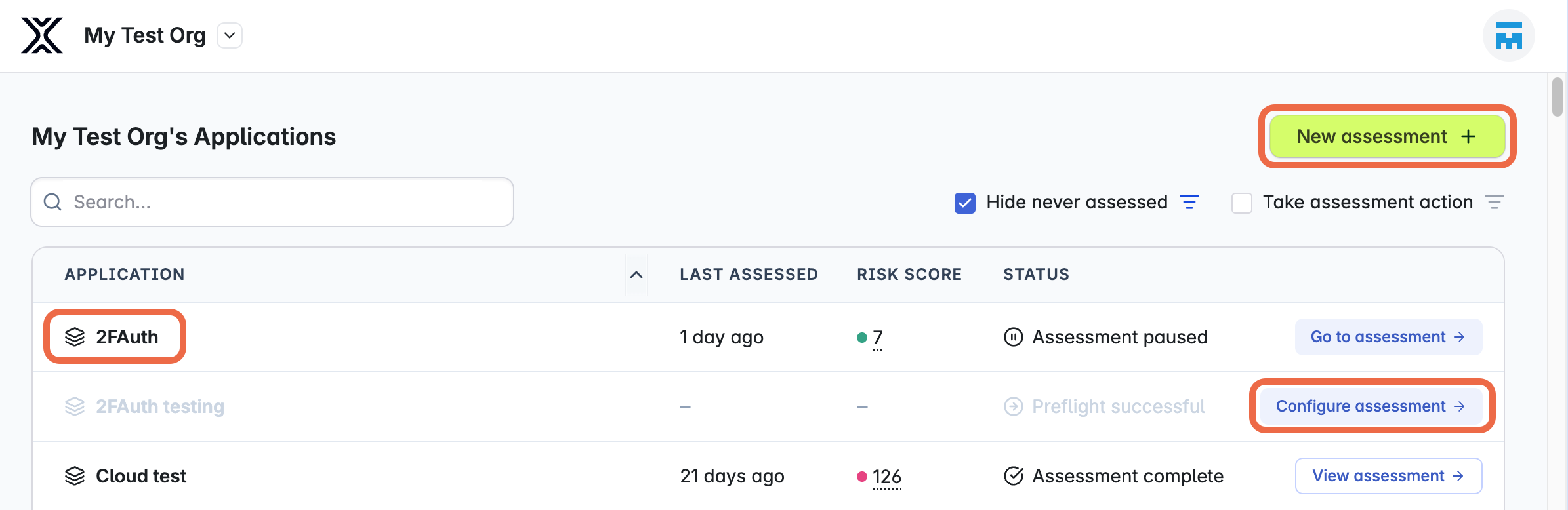
The organization dashboard shows a list of all assets (Applications) defined in XBOW, and a New assessment button.
- Assets shown in pale gray text have partly completed configurations or assessments. Select the action button shown in the row (for example, Go to assessment or Configure assessment) to continue setup.
- Assets shown in black have at least one successful assessment. Select the asset name or View assessment to open the results summary.
Each asset with a completed assessment shows a risk score based on the number and severity of open findings. See Risk score.
Add or edit assets
The following actions require the Administrator role.
- Add a new asset by clicking the New assessment button and then choosing New Application.
- Rename an asset by opening an asset from the list and clicking the
 icon associated with the name.
Delete an asset
Deleting an asset requires the Administrator role.
-
Open your asset from the organization dashboard.
-
Optionally, before you delete your asset, download any reports you want to keep.
-
At the top of the page, select the three dots next to Go to configuration, then click Delete Application.
Note: To delete an asset that is actively being assessed, you need to stop the assessment.
-
Read the confirmation dialog, then type your asset name in the text box and click Delete Application. The asset and all related assessment data will immediately disappear from the Console.
If you delete an asset by mistake, you can contact XBOW to restore your data for up to 30 days. After 30 days, XBOW permanently deletes your asset and all related data.